Archive

Archive for December, 2005

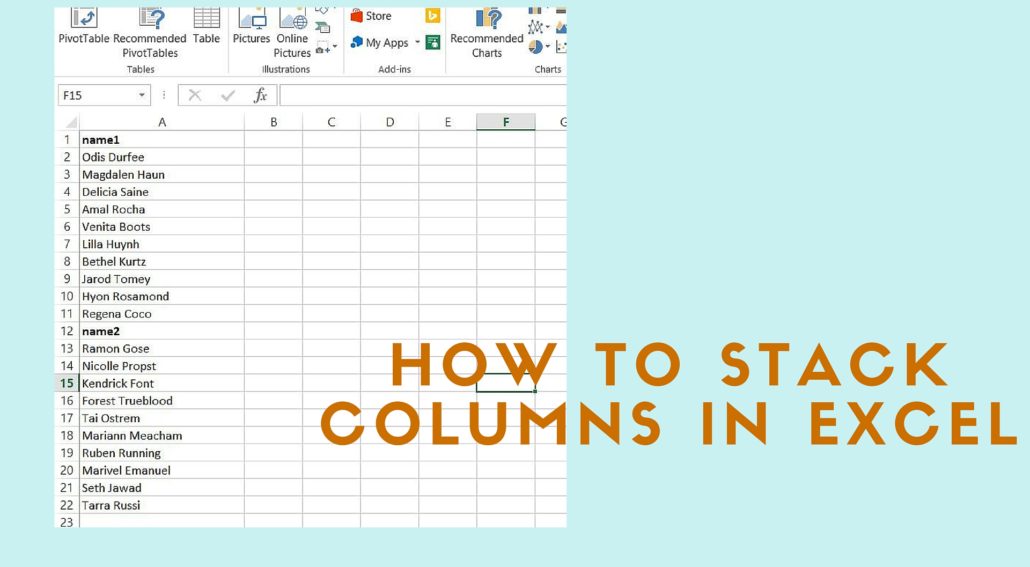
Stack Columns of Data on one column

December 23rd, 2005 15 comments

I have modified this code for better explanation and error handling (includes a function to check if a worksheet exists or not). To run this code follow these steps:
1. Insert a new module in your workbook,
2. Copy and paste this code,
3. Go back to worksheet with data in it,
4. Press Alt + F8 to bring the macro window
5. Select this procedure and hit run
6. Enter the new worksheet name in the input box
7. If everything went well, you should have a new worksheet with all the data from original worksheet in one column with the column headers. See the screen shots for example.
Before stacking-the original data:
Before Stack
After stacking:
After Stack
Here’s the code:

Option Explicit
 
Sub Stack_cols()
 
On Error GoTo Stack_cols_Error
 
Dim lNoofRows As Long, lNoofCols As Long
Dim lLoopCounter As Long, lCountRows As Long
Dim sNewShtName As String
Dim shtOrg As Worksheet, shtNew As Worksheet
 
'Turn off the screen update to make macro run faster
Application.ScreenUpdating = False
'Ask for a new sheet name, if not provided use newsht
sNewShtName = InputBox("Enter the new worksheet name", "Enter name", "newsht")
'Set a sheet variable for the sheet where the data resides
Set shtOrg = ActiveSheet
'Add a new worksheet, rename it and set it to a variable
If Not SheetExists(sNewShtName) Then
Worksheets.Add(After:=Worksheets(Worksheets.Count)).Name = sNewShtName
Set shtNew = Worksheets(sNewShtName)
Else
MsgBox "Worksheet name exists. Try again", vbInformation, "Sheet Exists"
Exit Sub
End If
 
With shtOrg
'Get the last column number
'Replace .Range("IV1") with .Range("XFD1") for Excel 2007
lNoofCols = .Range("IV1").End(xlToLeft).Column
'Start a loop to copy and paste data from the first column to the last column
For lLoopCounter = 1 To lNoofCols
'Count the number of rows in the looping column
'Replace .Cells(65536, lLoopCounter) with .Cells(1048576, lLoopCounter) for Excel 2007
lNoofRows = .Cells(65536, lLoopCounter).End(xlUp).Row
.Range(.Cells(1, lLoopCounter), .Cells(lNoofRows, lLoopCounter)).Copy Destination:=shtNew.Range(shtNew.Cells(lCountRows + 1, 1), shtNew.Cells(lCountRows + lNoofRows, 1))
'count the number of rows in the new worksheet
lCountRows = lCountRows + lNoofRows
Next lLoopCounter
End With
 
On Error GoTo 0
SmoothExit_Stack_cols:
Application.ScreenUpdating = True
Exit Sub
 
Stack_cols_Error:
MsgBox "Error " & Err.Number & " (" & Err.Description & ") in Sub:Stack_cols"
Resume SmoothExit_Stack_cols
End Sub
'Check if a worksheet exists or not
Public Function SheetExists(sShtName As String) As Boolean
On Error Resume Next
 
Dim wsSheet As Worksheet, bResult As Boolean
bResult = False
Set wsSheet = Sheets(sShtName)
 
On Error GoTo 0
If Not wsSheet Is Nothing Then
bResult = True
End If
SheetExists = bResult
End Function

Convert a number to its equivalent letter

December 17th, 2005 2 comments

If you want to convert a number to its equivalent letter, for e.g. 5 to E, you can use two approaches.

1. Insert this code in a Module and use this function

‘Author: Alan L. Lesmerises
‘From: http://www.freevbcode.com/ShowCode.asp?ID=4303

Function ColumnLetter(ColumnNumber As Integer) As String
  If ColumnNumber > 26 Then

    ‘ 1st character:  Subtract 1 to map the characters to 0-25,
    ‘                 but you don’t have to remap back to 1-26
    ‘                 after the ‘Int’ operation since columns
    ‘                 1-26 have no prefix letter

    ‘ 2nd character:  Subtract 1 to map the characters to 0-25,
    ‘                 but then must remap back to 1-26 after
    ‘                 the ‘Mod’ operation by adding 1 back in
    ‘                 (included in the ‘65′)

    ColumnLetter = Chr(Int((ColumnNumber – 1) / 26) + 64) & _
                   Chr(((ColumnNumber – 1) Mod 26) + 65)
  Else
    ‘ Columns A-Z
    ColumnLetter = Chr(ColumnNumber + 64)
  End If
End Function

e.g. “=Columnletter(5)” will return E and “= Columnletter(COLUMN())” will return letter depending on which column this formula is in.

2. Use this formula (Credit due) “=LEFT(ADDRESS(1,COLUMN(),4),1)”

These formulas can be useful with functions like INDIRECT and OFFSET.

Categories: Uncategorized Tags: