
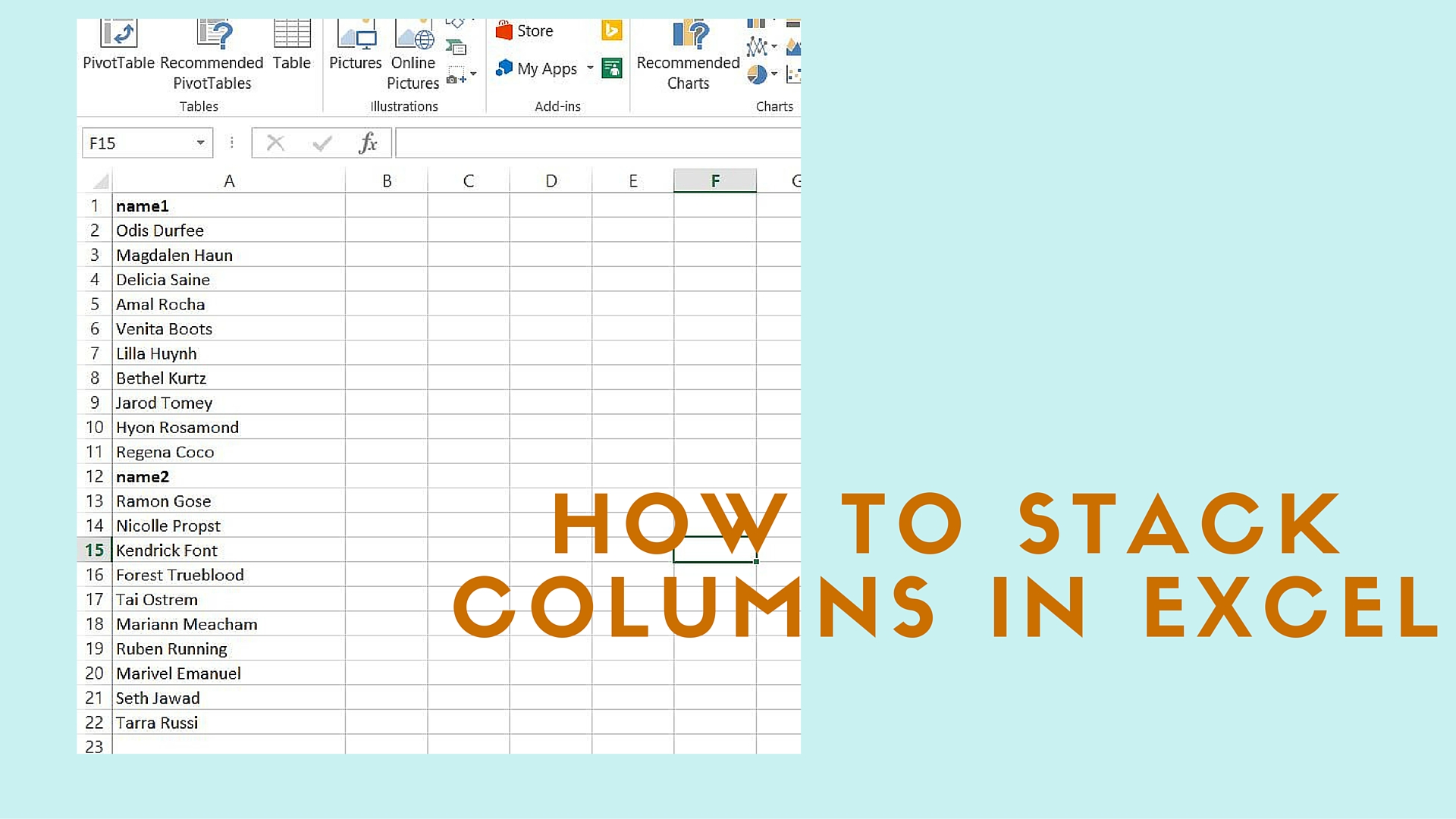
Problem
In Excel, from time-to-time you may want to stack different columns of data into one column. For example, if cell A1 has the value of Bob, A2 has Jane, and B1 has Mary and B2 has Sue, you may want to collapse all the values from both A and B columns into one column. The result would be: A1 will contain Bob, A2 will contain Jane, A3 will contain Mary, A4 will contain Sue. The following procedure will help you do so. This code also includes a function to check whether a worksheet exists.
Solution
To run this code follow these steps:
- Press Alt + F11 to bring up the VBA editor
- Insert a new module in your workbook using the Insert menu option from the toolbar and clicking Module
- Copy and paste this code
- Go back to worksheet with data in it
- Press Alt + F8 to bring the macro window
- Select the Stack_cols procedure and hit run
- Enter the new worksheet name in the input box
- If everything went well, you should have a new worksheet with all the data from original worksheet in one column with the column headers. See the screen shots for example.
Before stacking-the original data:

before applying stack cols function
After stacking:

after applying the stack cols function
Here’s the code:
Option Explicit
Sub Stack_cols()
On Error GoTo Stack_cols_Error
Dim lNoofRows As Long, lNoofCols As Long
Dim lLoopCounter As Long, lCountRows As Long
Dim sNewShtName As String
Dim shtOrg As Worksheet, shtNew As Worksheet
'Turn off the screen update to make macro run faster
Application.ScreenUpdating = False
'Ask for a new sheet name, if not provided use newsht
sNewShtName = InputBox("Enter the new worksheet name", "Enter name", "newsht")
'Set a sheet variable for the sheet where the data resides
Set shtOrg = ActiveSheet
'Add a new worksheet, rename it and set it to a variable
If Not SheetExists(sNewShtName) Then
Worksheets.Add(After:=Worksheets(Worksheets.Count)).Name = sNewShtName
Set shtNew = Worksheets(sNewShtName)
Else
MsgBox "Worksheet name exists. Try again", vbInformation, "Sheet Exists"
Exit Sub
End If
With shtOrg
'Get the last column number
'Replace .Range("IV1") with .Range("XFD1") for Excel 2007
lNoofCols = .Range("IV1").End(xlToLeft).Column
'Start a loop to copy and paste data from the first column to the last column
For lLoopCounter = 1 To lNoofCols
'Count the number of rows in the looping column
'Replace .Cells(65536, lLoopCounter) with .Cells(1048576, lLoopCounter) for Excel 2007
lNoofRows = .Cells(65536, lLoopCounter).End(xlUp).Row
.Range(.Cells(1, lLoopCounter), .Cells(lNoofRows, lLoopCounter)).Copy Destination:=shtNew.Range(shtNew.Cells(lCountRows + 1, 1), shtNew.Cells(lCountRows + lNoofRows, 1))
'count the number of rows in the new worksheet
lCountRows = lCountRows + lNoofRows
Next lLoopCounter
End With
On Error GoTo 0
SmoothExit_Stack_cols:
Application.ScreenUpdating = True
Exit Sub
Stack_cols_Error:
' if this gives you an error, make sure that there an ampersand (&) sign, rather than the & literal string. the code formatting is an issue
MsgBox "Error " & Err.Number & " (" & Err.Description & ") in Sub:Stack_cols"
Resume SmoothExit_Stack_cols
End Sub
'Check if a worksheet exists or not
Public Function SheetExists(sShtName As String) As Boolean
On Error Resume Next
Dim wsSheet As Worksheet, bResult As Boolean
bResult = False
Set wsSheet = Sheets(sShtName)
On Error GoTo 0
If Not wsSheet Is Nothing Then
bResult = True
End If
SheetExists = bResult
End FunctionCode language: VB.NET (vbnet)Update: I’ve uploaded a video on YouTube of a walk through of this process of stacking columns in Excel. Here it is:
Learn Excel Programming
Table could not be displayed.Last update on 2022-05-05 / Affiliate links / Images from Amazon Product Advertising API
did the trick, thanks you genius! JAmes UK)
could you perhaps show me how to implement your code? I’m having trouble getting results when running it. Thanks!
EfficienC:
I’ve modified the code. I hope that this offers more explanation.
Works PERFECTLY!!!! This just save me HOURS and HOURS of manual work. Thank you! – dub3
Any chance this can be translated for Excel 2007? This seems like exactly the thing to save tons of time in excel.
Thanks
Edward
Edward,I’ve modified the code, and put two comments:’Replace .Range(“IV1”) with .Range(“XFD1”) for Excel 2007 lNoofCols = .Range(“IV1”).End(xlToLeft).Column’Replace .Cells(65536, lLoopCounter) with .Cells(1048576, lLoopCounter) for Excel 2007 lNoofRows = .Cells(65536, lLoopCounter).End(xlUp).RowYou have to make two changes to make this work for 2007. First, change the last column from IV to XFD. Second, change the number of rows from 65536 to 1048576.
Much Appreciated!
In order for this to be even more effective, you could stack into two columns, with the first column repeating the header information for each stacked column. E.g.
A 1
A 2
A 3
B 1
B 2
B 3
Thanks!
Does anyone know how to unstack a column? Say I have similar categories of information for 9 groups of 11 cells, all stacked in one column. I am looking to create a table (9×11)… I would very much appreciate your insights!
thankyou so much…saved me a whole lot of work 🙂
This is close to what I am looking for. How can I stack groups of columns? Like G groups of C columns? Or 10 Groups of 3 columns stacked in one group of 3 columns? It needs to be variable, because sometimes it might be 25 groups of 4 columns, etc. I can send an example of the data I have and how I need it to be arrange.Dandmiech@aol.com
EXCELLENT. WORKED VERY WELL.
(took me a while, i’m not used to Macros, but I realized that when you copy this code, the ” and the ‘ don’t copy correctly. So make sure you replace those)
@darhay,
I’m glad that it worked for you, darhay. I’m sorry that the quotes come out wrong. Those single quotes got messed up when I transferred my posts from blogger to wordpress. I will see if I can replace them correctly.
that was so easy!!!!
thank you so much for putting this on the web.
Absolutely brilliant.
Thanks….saved me loads of time.
It worked!!! That is so useful. Thank you
Thanks, you saved me tons of work!
You just saved me days of work. Thank you
I notice the macro will break if there are some blank cells involved
how do you add the Nz function to it
assume it is in
Copy Destination:=shtNew.Range(shtNew.Cells(lCountRows + 1, 1), shtNew.Cells(lCountRows + lNoofRows, 1))
Thank you
Hi Ashutosh
Excellent!
How should I modify the script to stack blocs of 4 columns rather than 1?
Thanks
How would you do this for multiple sheets but without the headings in it?
I’m looking to Create One List from multiple columns/sheets on Sheet 1 without spaces between columns or sheets. They don’t have to be in order for now, just all collected into one nice list.
Example
Sheet 2:
Column 1:
1
13
Column 2: (Empty)
Column 3:
3
5
Sheet 3:
Column 1:
1
1
1
I’m looking for a formula that would show Sheet 1’s First Column to be:
1
13
3
5
1
1
1
Is this possible? Without empty spaces in between?
I followed the steps exactly but it isn’t working for me. Is there a limit to the rows in the columns? I have over 600 rows.
This code fails to copy any columns that have blank cells in row 1.
Can this be fixed? Am I doing something wrong?
Thank you.
Awesome, saved hours of manual work for me. You rock!!!!!
thanks, MM. I’m glad it worked for you.
unfortunately, it is returning only one column and not stacking other columns.
Hello,
does this also work for Excel 365? I’ve just tried the code and it’s not working for me – only takes the first column and deletes the rest. Could you help?
Hi, Matthew,
I don’t have Office 365 to test this. Sorry.
It works!!! Thank you so much!
Thank you so much ! It was life saviour . Amazing work !
I’m glad it worked for you. 🙂
The reason why this happens is because the first row of every other column possibly starts with an empty cell/row. Remove the first row and this works fine.
I have a huge data set and this works awesome up to 255 columns.
running office 2013
any way to change the code to work with more than 255 columns?
still a time saver I just need to use a work around for now and split my data up.
I also found that the macro will not work for stacking columns that are links to cells in another sheet.
again, my hat is off to the creator of this, just throwing out ideas for improvements.
thank you.
same issue
Great Work! Saved my precious time.
Love this. Thanks. Works great.
Thanks a lott for this. Worked perfectly in Office 365 as well. Saved lottss of time.
I am stacking multiple columns into one with this formula: =INDEX(mydata,1+INT((ROW($A$1)-1)/COLUMNS(mydata)),MOD(ROW($A$1)-1+columns(mydata),COLUMNS(mydata))+1). This works perfectly EXCEPT, it does not bring the formatting or the hyperlinks over to the new stacked column. Is there something I can add to this formula to bring over the formatting & hyperlinks?
Hello! I´ve the same question, but to stack blocs of 2 collumns coming from blocs of 14 collumns.
Same question!
Great code. How would I stack groups of two columns.
i.e. I have a table: column 1 is a menu item name and it has 20 rows.
there is one year of daly data organized horizontally containing two columns for eac dat. Column 2 is quantity sold, Column 3 is Price. the pattern repeats for 300+ columns. Column 4 is quantity sold and Column 5 is the price and so on and so on. I am planning on concatenating the data in each cell to contain the item name(col 1, and the date(row 1) and the cell data. then I want to stack quantity and price columns on top of each other. Then I am going to use text to column to separate them. How can I use the code you provided to stack every other “two” columns on top of eachother instead of every “single” Column.
I quite appreciate this. But i have difficulty in arranging a larger phone numbers separated by commas and which was arranged in columns and rows, arranged in a single long column.
Meaning that i want the phone numbers arranged in a single column file.
Many thanks for this script. Gave me a great solution to work with some column ‘blocks’ that I needed to stack for a re-import to another SW application. Worked straight and correctly first time – seriously appreciated.
Regards
‘The Derwynator’ (Cape Town RSA)
Thank you SO MUCH!
You are welcome, Jade.
I’m glad this helped you, “The Derwynator”. LOL. 🙂
Akinjuyigbe, I am struggling to understand the question. If you have the phone numbers separated in different columns, you need to join them using the “&” operator.
hi, this no longer seems to work. i’m getting this error: Complie error, syntax error
MsgBox “Error ” & Err.Number & ” (” & Err.Description & “) in Sub:Stack_cols”
Can you check if this can be fixed? Thank you
I received the same message: Complete error: Syntax error. Did you receive any feedback from him?
Did anyone find a way to get this working again? It would be a huge lifesaver, but i’m getting the exact same problem..
I don’t have Windows OS anymore to test this unfortunately. Sorry.
Someone posted a comment on YouTube that the “and” sign was getting converted to “&” string. Please replace that with the sign, and the code should work.
Just used this and worked perfectly first time.
Wow this is very clever. Thank you very much indeed.
Blessings.
Thank you, Nicholas. I’m glad you found this useful.